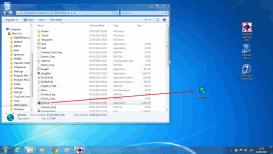
This step by step tutorial show you
"How To" get routes you have prepared in SeaClear
and convert them to GPX format, so they can be used in Marine
Navigator Android app.... with plenty of pictures!
Click or tap any of the small images to see in FULL SIZE

FIRST: You need G7towin executable. It's normally bundled
with the SeaClear product (Folder 1), if you can't find it,
you can download it HERE
Get it on you desktop.
.
.
.
.
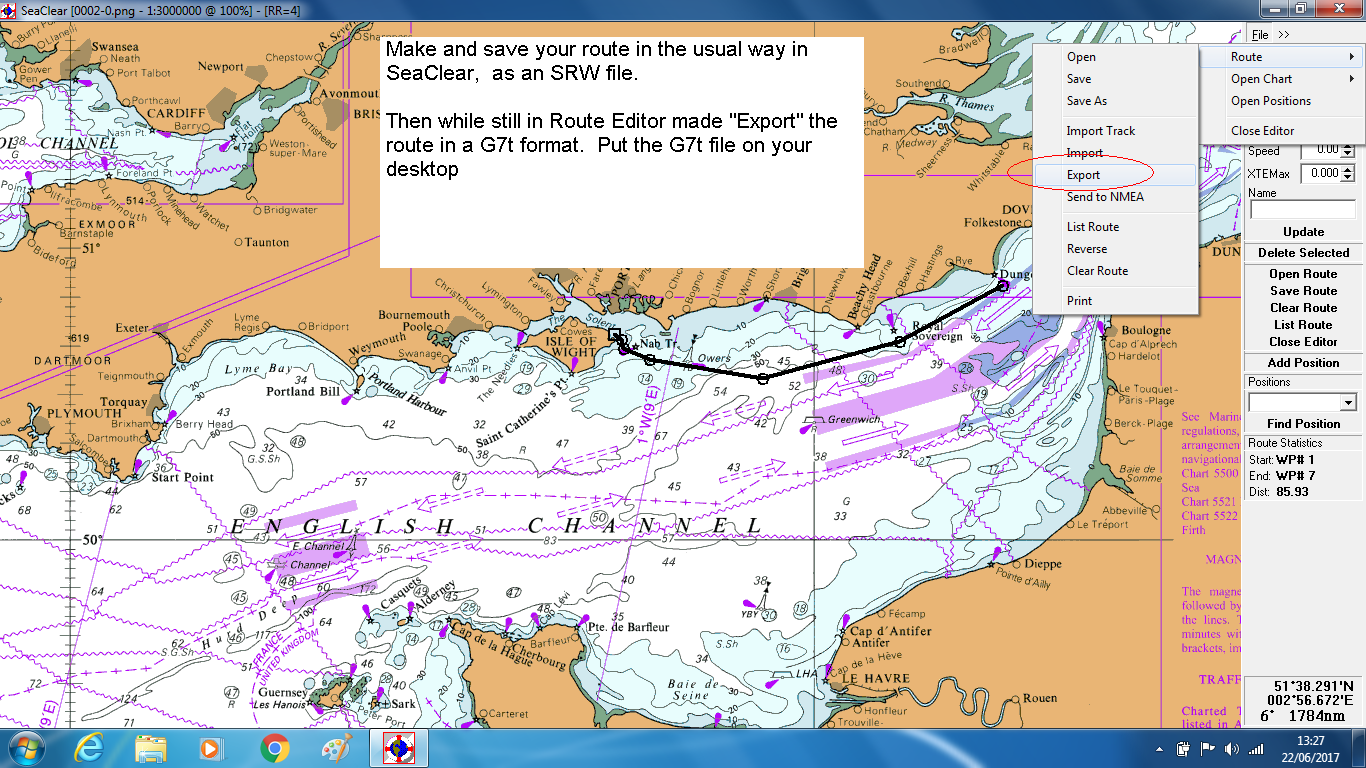
With SeaClear running, get your chosen route showing onscreen, in
Route Editor mode. File >>> Export
..
.
.
.
.
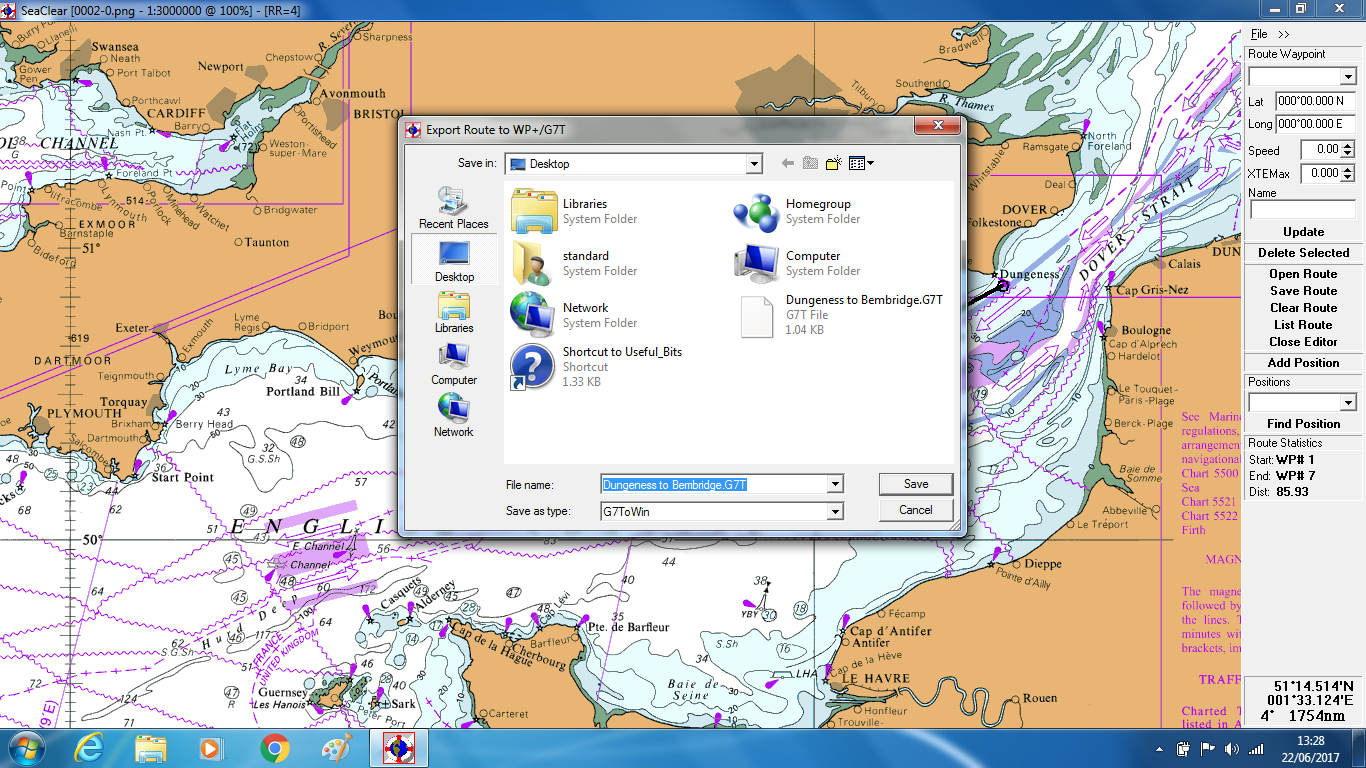
Save route as a G7T file on your desktop
.
.
.
.
.
.
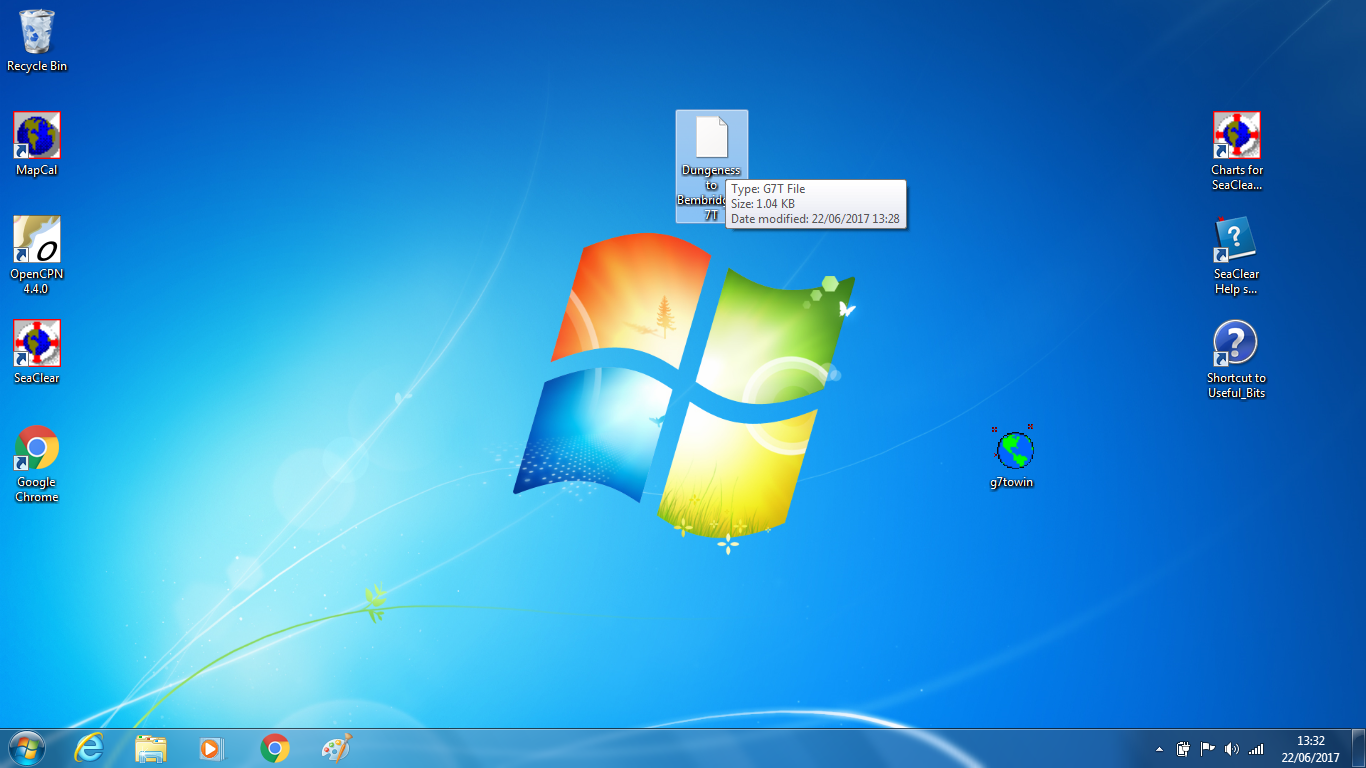
Close SeaClear, see the route you have saved as a G7T file
.
.
.
.
.
.
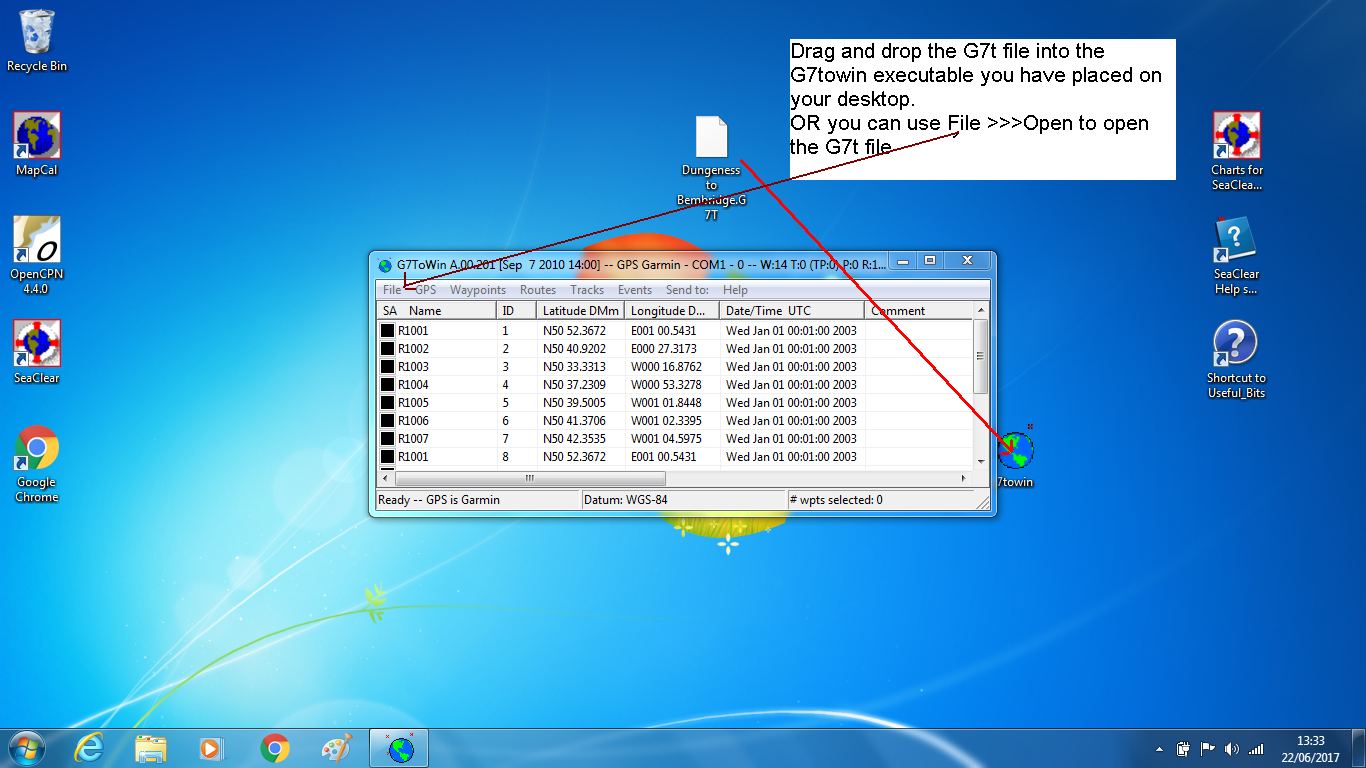
Drag and Drop the G7T route file INTO the G7towin executable,(or
use File>>>Open ... to open it)
.
.
.
.
.
.
.
.
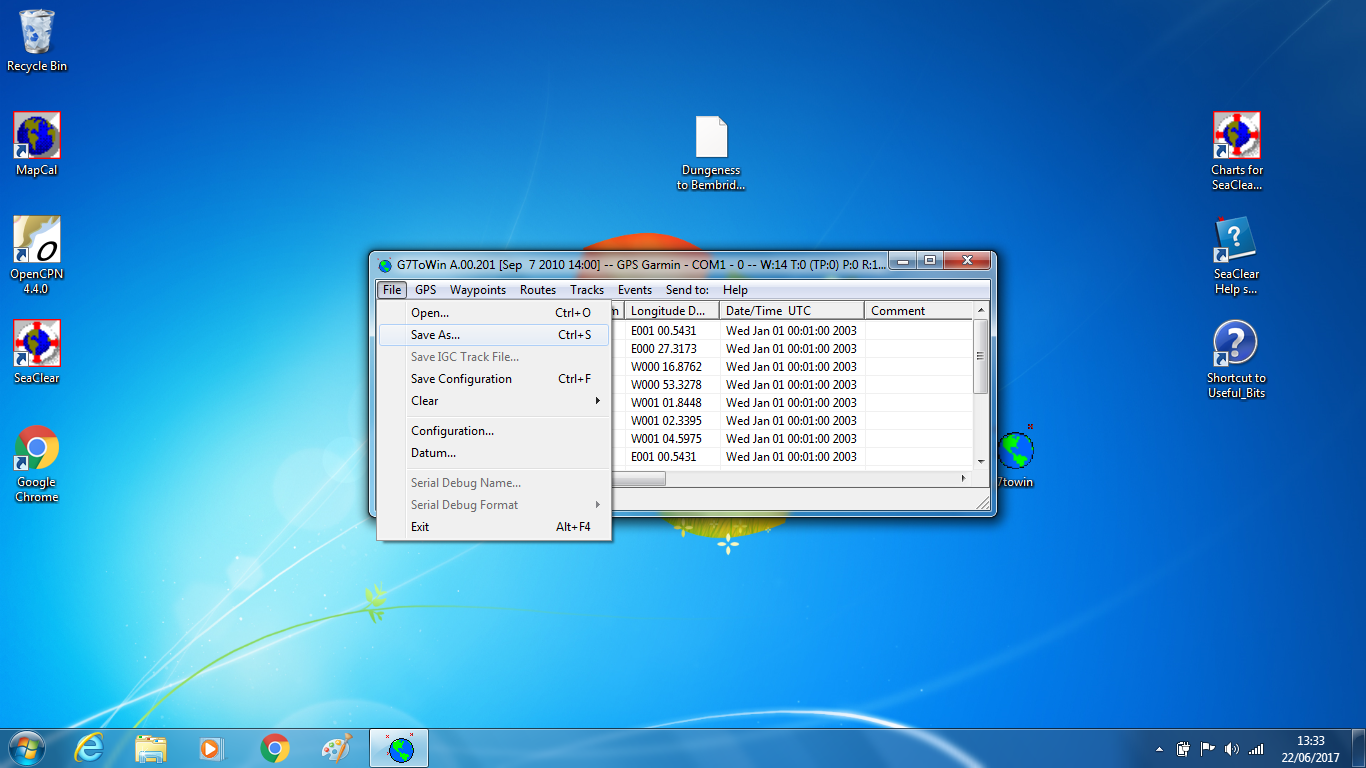
.File >>> Save As
.
.
.
.
.
.
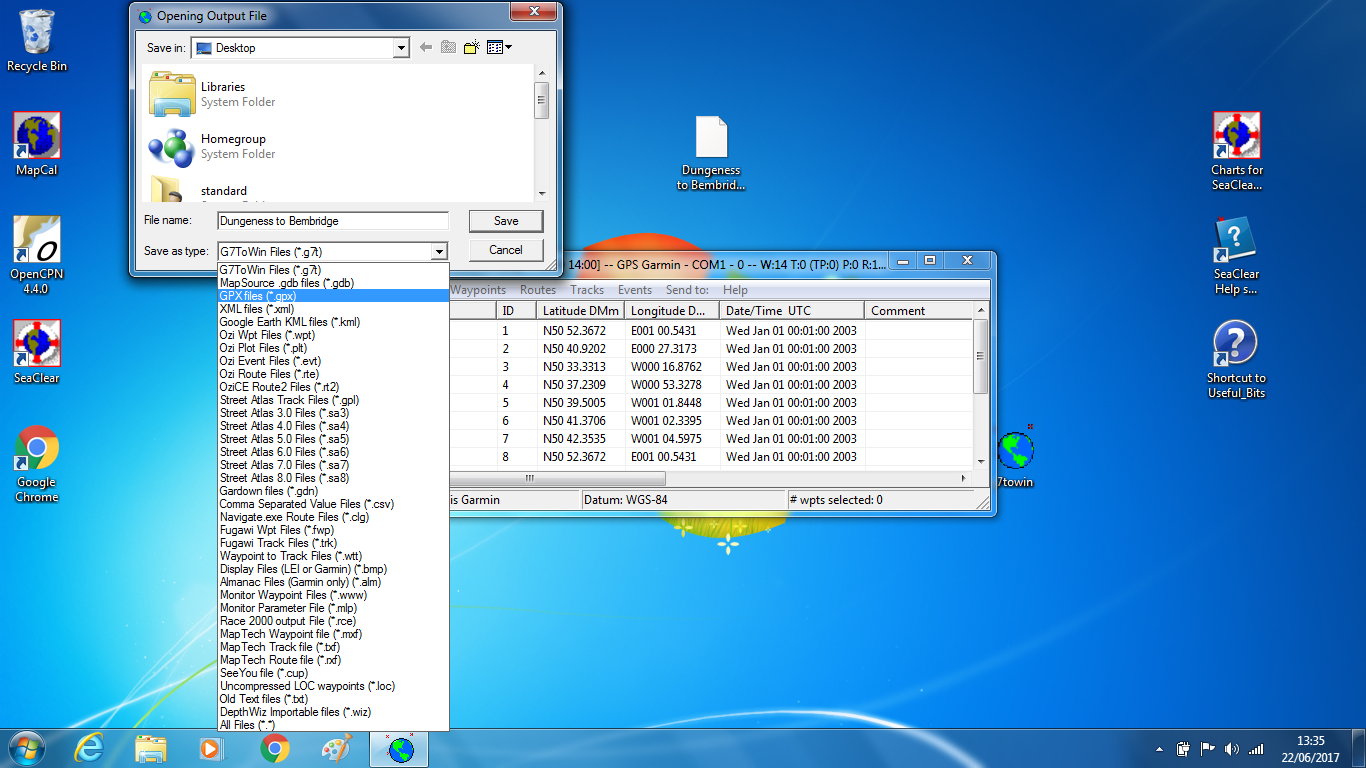
Save the route as a GPX file
.
.
.
.
.
.
.
.
.
.
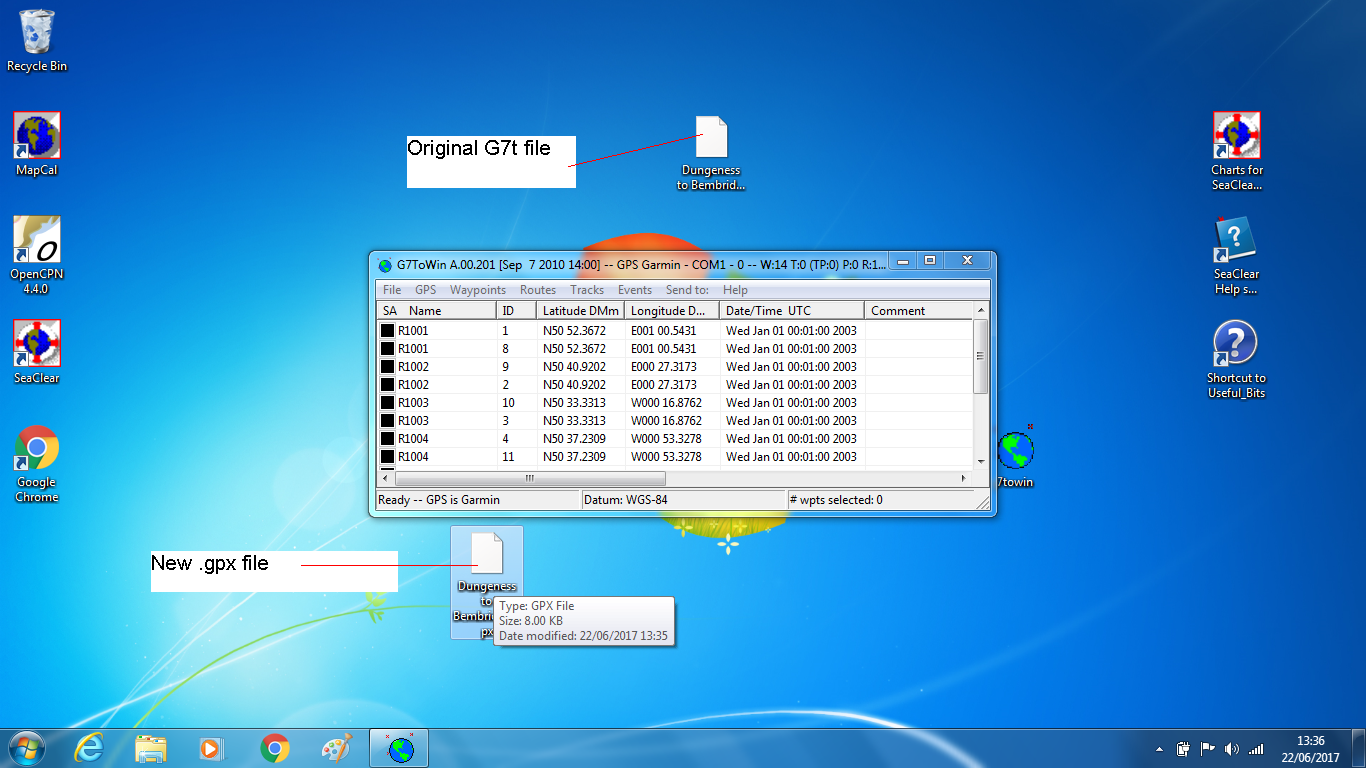
SO... you now have a GPX file of your SeaClear route on your
desktop...
.
.
.
.
.
.
.
.
.
.
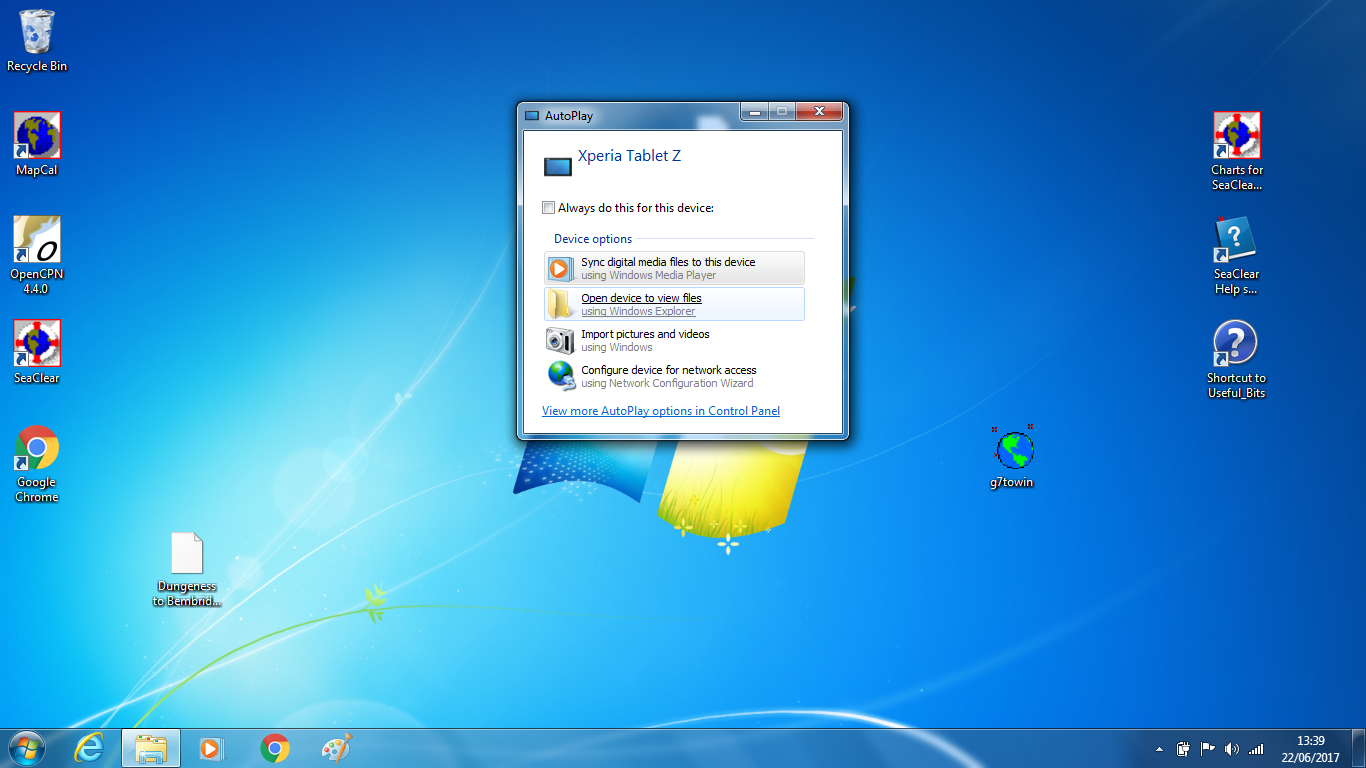
Plug in your Android tablet.
.
.
.
.
.
.
.
.
.
.
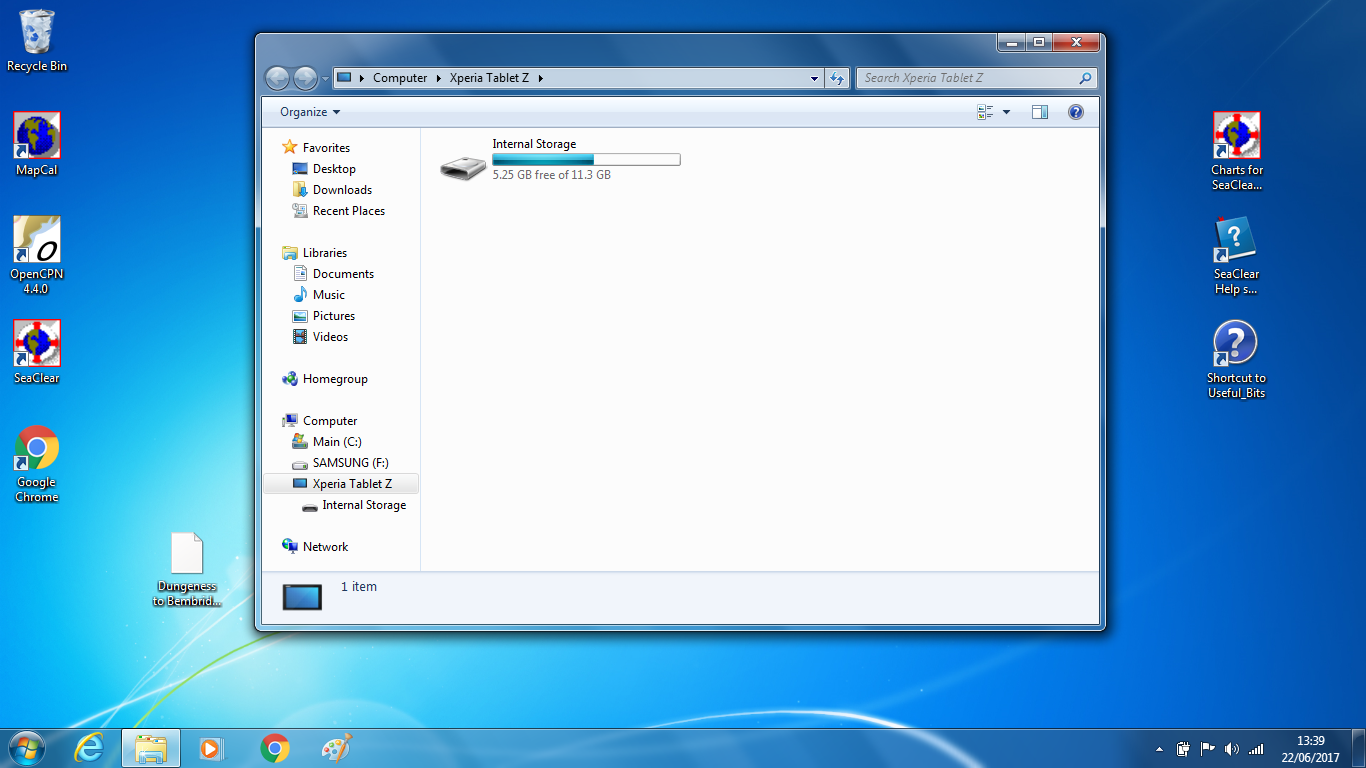
Open it in Windows Explorer
.
.
.
.
.
.
.
.
.
.
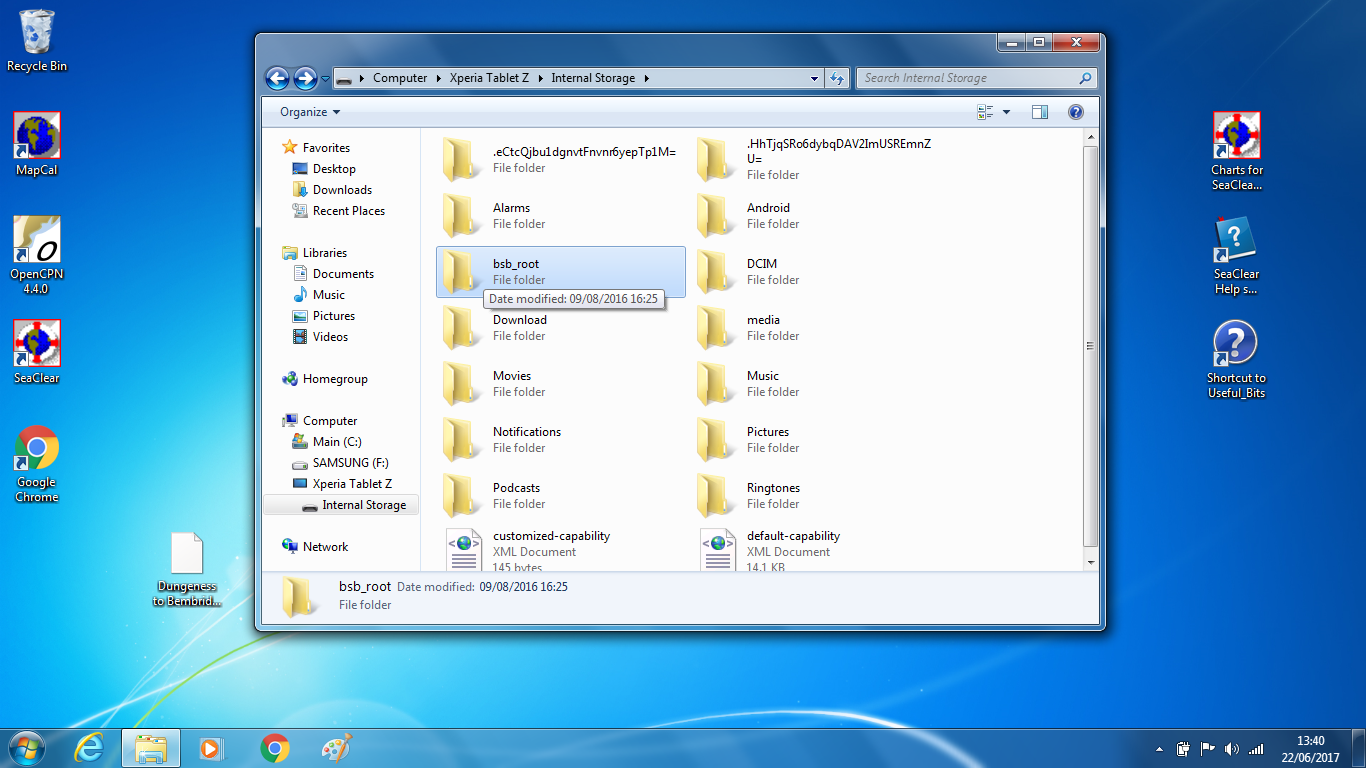
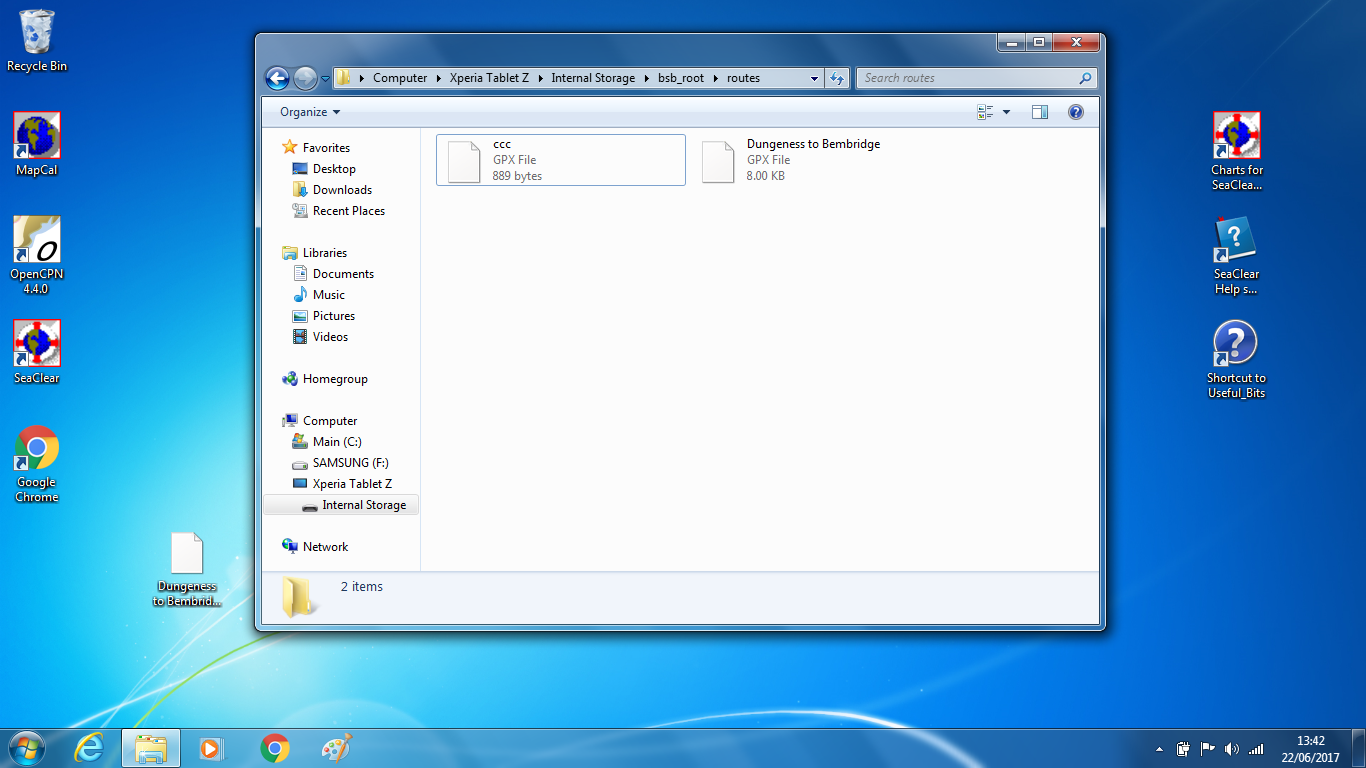
You're looking for BSB_ROOT folder
.
.
.
.
.
.
.
.
.
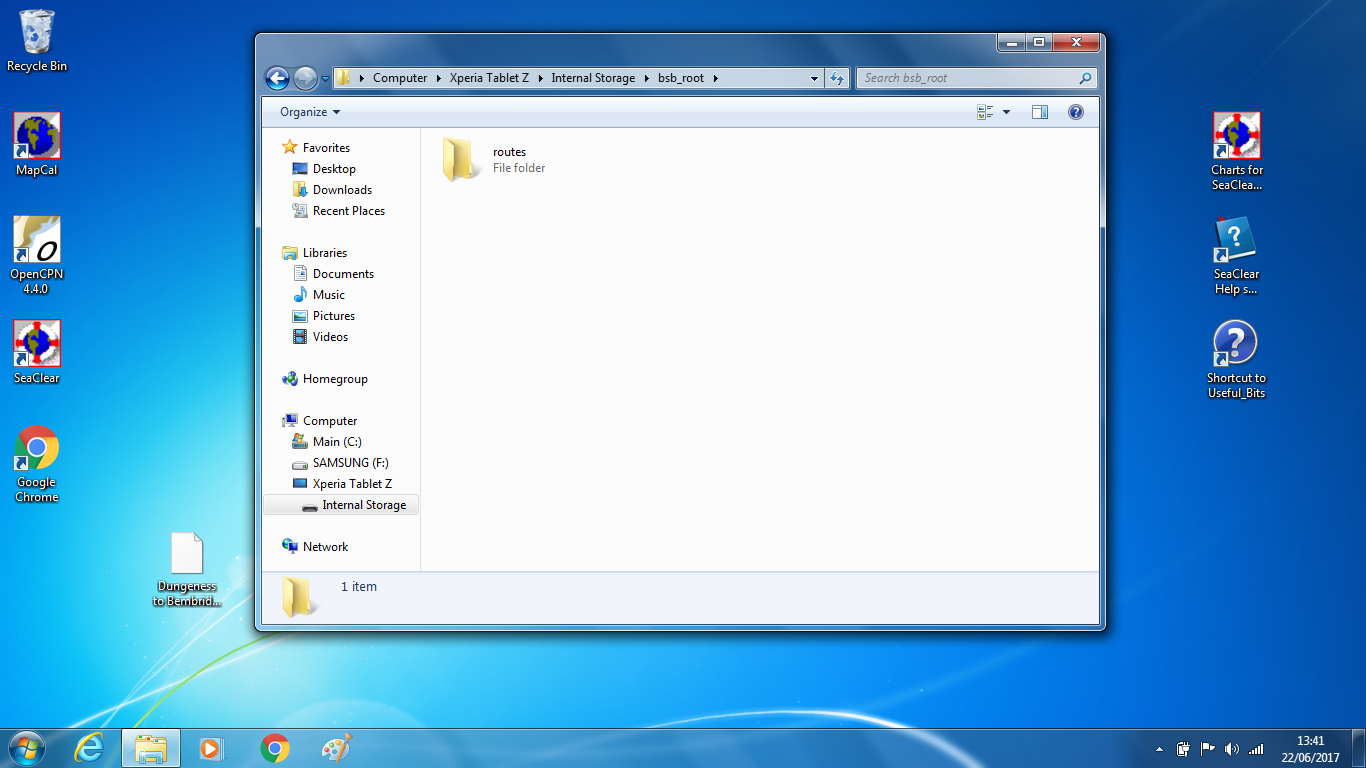
See the Routes folder in there ?
.
.
.
.
.
.
.
.
.
Drag and drop your GPX route into that.
.
.
.
.
.
.
.
.
.
.
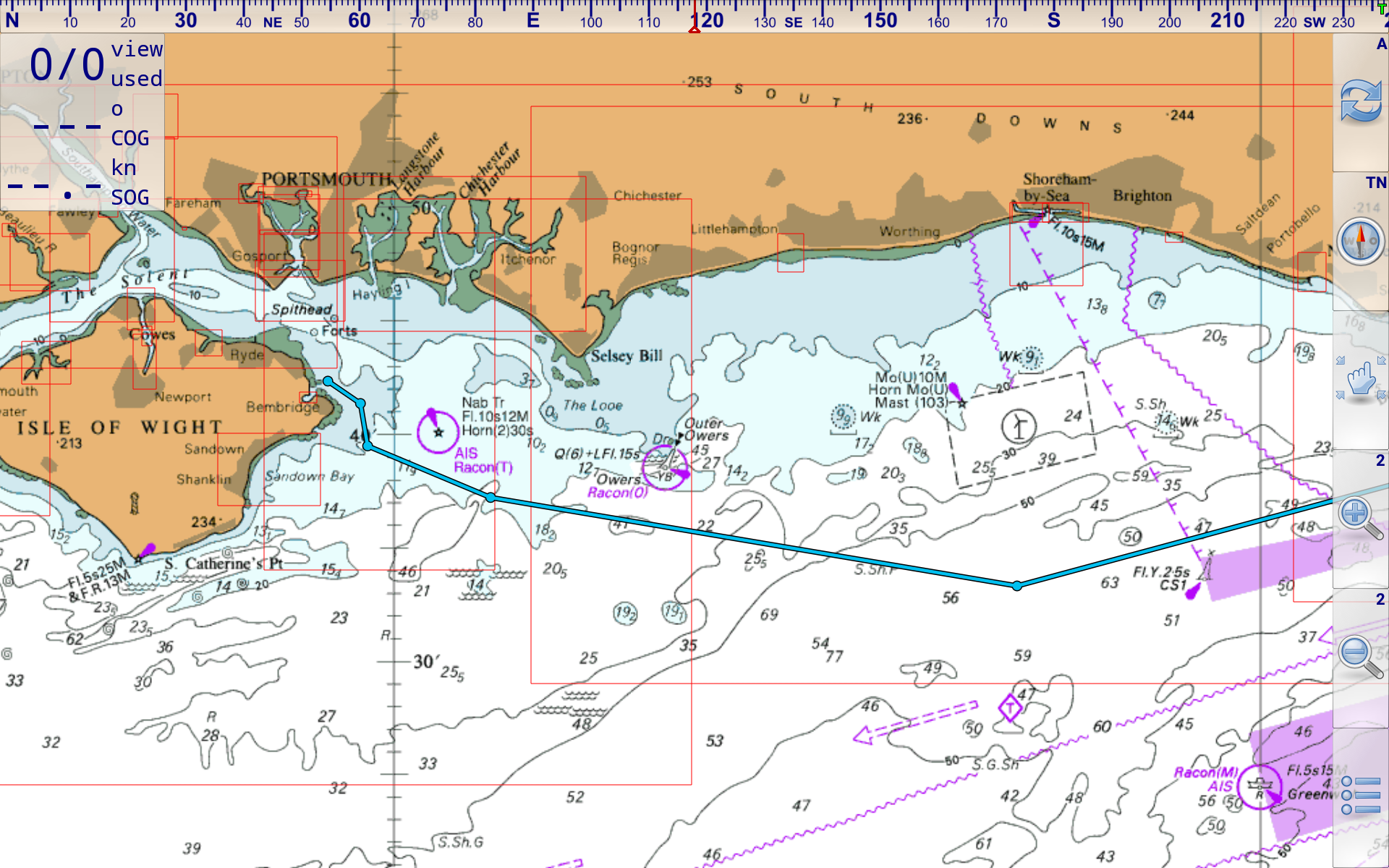
Unplug the Android tablet, fire up Marine Navigator.
3 Horizontal bars >>> Routes >>> Open
Open out the route you just put in
.
.
.
.
.
.
.
.
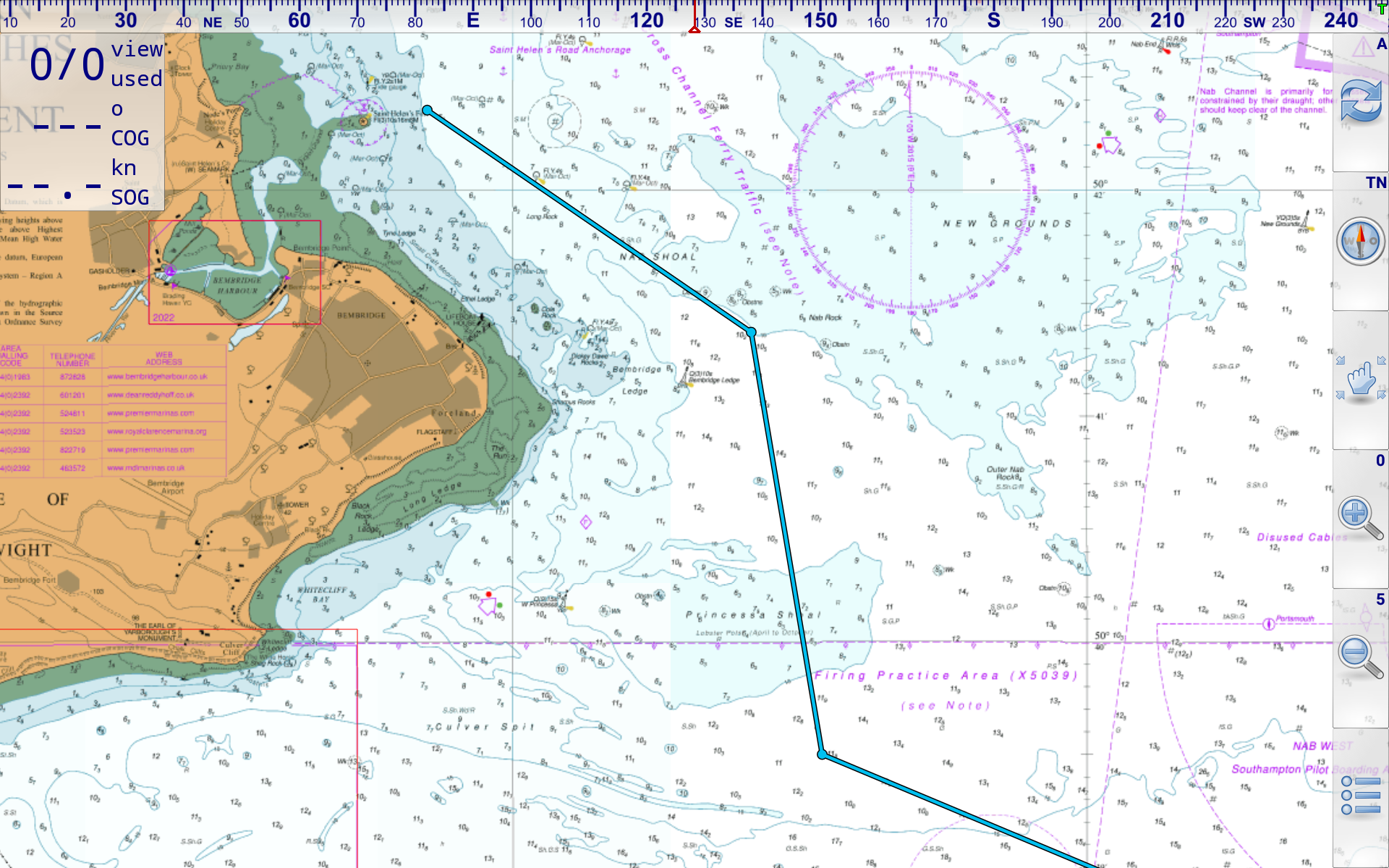
There it is in full detail, ready to be used at sea in Marine Navigator