Anti‑Virus Compatibility
Status: As of January 2016, there have been no reported anti‑virus issues.
Important Notice: First Launch Performance
After installation, the first launch of the SeaClear package will be very slow. Startup can take 45 seconds or more. This is normal behaviour.
The startup sequence is as follows:
EULA: Please read and click “I Agree” to continue
Splash Screen: Displays a notice that printing is disabled while SeaClear is running
SeaClear Application Launch: A world map will appear once fully loaded
Please be patient during this initial startup.
Subsequent launches will be significantly faster:
Application startup: approximately 7 seconds
Chart changes: approximately 1.5 seconds

Installation Instructions (Windows 7)
The screenshots below illustrate the installation process on Windows 7.
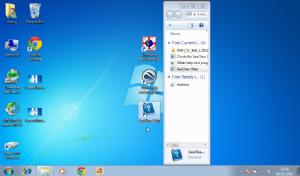
Step 1: Open Installation Media
Open the DVD or USB and switch to Folder View so you can see its contents.
Click “Computer” to display both internal and external drives.
Step 2: Copy Chart Folder
Locate the main folder named
VMH‑Charts.Drag this folder directly from the DVD/USB to Drive C:.
⚠️ Important
Do not attempt to install this folder in any other location (e.g. My Documents , Program Files , etc.).
The folder must be placed directly on Drive C: exactly as supplied.
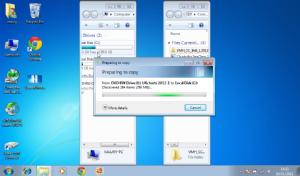
Step 3: File Transfer
The copy process may take several minutes.
The folder size is approximately 400MB to 800 MB.
Step 4: Create Desktop Shortcuts
Drag the three shortcuts provided directly onto your desktop.
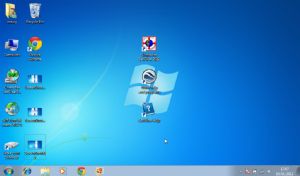
Using SeaClear
Once installed, the system is ready for use:
Top shortcut
Launches SeaClear with the charts pre‑loaded.Middle shortcut
Opens a folder containing:The official SeaClear manual (PDF)
Additional useful programs and reference PDFs
Please print and read the manual, including the terms of use on the back page.
Bottom shortcut
Opens the embedded help manual, written by technical author
Richard Fairman BA.
Recommended Next Steps
Print and read the official SeaClear manual.
Explore Charts for SeaClear to familiarise yourself with the available content and functionality.
Uninstalling SeaClear
To completely remove the installation:
Simply delete the folders that were copied to your system.
No registry changes are made during installation, ensuring a clean removal.
You may need to restart your PC before deletion is fully completed.