Use out Quick Start Guide for the essentials – or, if you’ve got a bit more time, dive into the full step-by-step instructions below.
Quick start guide
Step 1: Unlock the Charts
Plug in the USB or mount the virtual DVD.
Run RunMe.exe → Agree to the EULA → Wait for the splash screen.
Charts remain unlocked until shutdown (they survive hibernation).
Step 2: Try the Portable OpenCPN (New from July 2024)
After unlocking, you may see an option to launch a ready-to-use version of OpenCPN.
Runs directly from USB/ISO (no install).
Routes and waypoints can be saved locally, but program settings won’t.
Great for testing before installing full software.
Step 3: Install a Navigation Program
From the Install various Nav programs folder:
qtVlm → Full-featured nav, weather & tides. (Install takes ~10 mins).
OpenCPN → Free, popular, works with Unified Charts (v5.2+).
SeaClear → Free, with provided installer & preset directories.
Polar Navy → Trial only (discontinued), but works well.
IMAGE HEREExpedition → High-end pro software (~£1000).
Step 4: Point the Program at the Charts
Open program → Add chart directory → Select USB/virtual DVD.
Force database rebuild if prompted.
Charts will load.
Tips:
Assign a fixed drive letter to the USB/ISO for reliability.
In OpenCPN, enable OpenGL mode for best chart quality.
Daily use is simple:
Start computer
Run RunMe.exe (unlock)
Open your nav program → Sail away!
Step-by-step instructions
Step 1: Unlock the Charts
The unlocking process is the same whether you are using a USB or the virtual DVD.
Run the RunMe.exe file, agree to the EULA (license agreement), and wait for the splash screen to appear.
This process usually starts automatically when you plug in the USB or mount the virtual DVD.
Once complete, charts remain usable until the computer is shut down. (Note: unlocked charts remain available during hibernation.)
On some systems, particularly Windows 10, the RunMe process may not start automatically. If this happens, open the USB or mounted DVD in File Explorer, locate RunMe.exe, and double-click to start the unlocking process.
Once the EULA and splash screen are confirmed, you are ready to use the charts.
Step 2: New – Embedded Portable OpenCPN
For products issued from mid-July 2024 onwards, after unlocking you will see the option to launch an embedded, portable version of OpenCPN.
This version runs directly from the USB or ISO image, without installation.
As the media is read-only, settings (e.g. GPS configuration) cannot be saved inside the program. However, routes and waypoints can still be saved locally.
We recommend using this as a quick way to explore the charts, and then installing a full version of OpenCPN or another navigation program on your computer for ongoing use.
Step 3: Install Navigation Program(s)

A folder named Install various Nav programs is included on the drive. Inside you will find installers and a PDF guide: Set up with Windows programs – Instructions.
qtVlm
A fully featured program including navigation, weather, and tidal streams.
Installation can take over 10 minutes. Allow the process to complete without interruption, as antivirus software may run background checks.
Once installed, qtVlm will start automatically with charts unlocked.
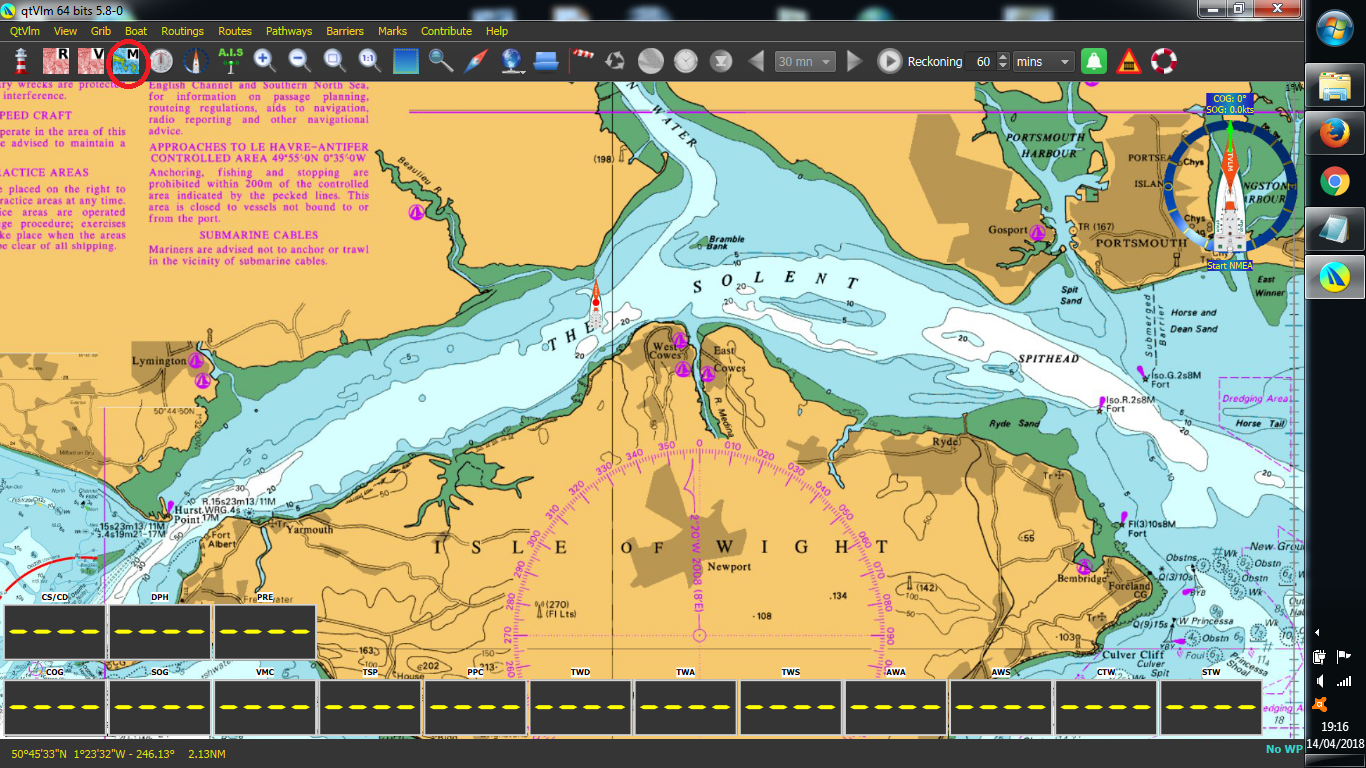
Tip: The “M” button locks the display scale (shown as a number, e.g. 11). Use this when zooming to avoid automatic scale switching.
Other Supported Programs
After installing your chosen navigation program, you must direct it to the location of the Unified Charts. For consistent performance, assign a fixed drive letter to the USB or mounted DVD.
(See our Step-by-Step Guide for help setting a stable drive letter.)
Important: Each navigation program has its own licensing terms. Please review and agree to those before use.
Step 4: Configure Your Program to Use the Charts
OpenCPN (Free)
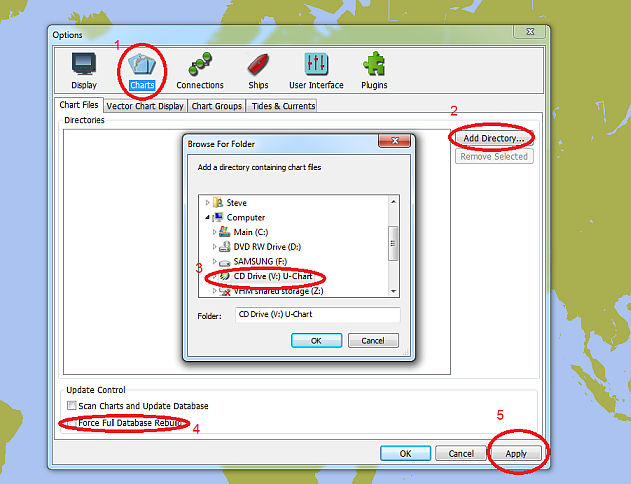
Unified Charts are compatible with current and recent versions of OpenCPN (5.2.0, 5.2.4, 5.6.0, 5.8.4).
Unlock the charts (Step 1).
Install OpenCPN from the official site.
Open OpenCPN and click the “Cogwheel” (Tools) icon → Charts → Add Directory → Select the USB/virtual DVD.
Tick Force Full Database Rebuild → Apply. Charts will load.
Image Quality Tip:
If charts appear grainy, go to Tools → Display → Advanced tab, enable OpenGL mode, and Apply.
[See detailed OpenCPN setup guide here.]
SeaClear (Free)
Unified Charts will not work with existing “Charts for SeaClear” packages, but they can be used with plain versions of SeaClear.
We provide an installable SeaClear package with preset directories for common drive letters.
After unlocking charts, open MapCal → Tools → Autoload List → Scan for New Charts.
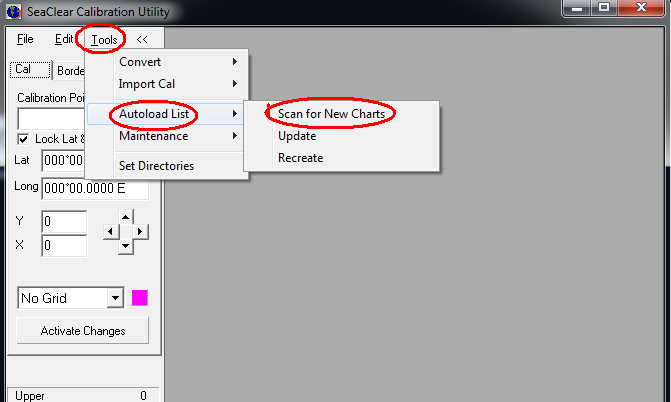
Once scanned, close MapCal and open SeaClear to use the charts.
Polar Navy (Trial, discontinued)
Polar Navy works well with Unified Charts, particularly if you experience image quality issues in OpenCPN.
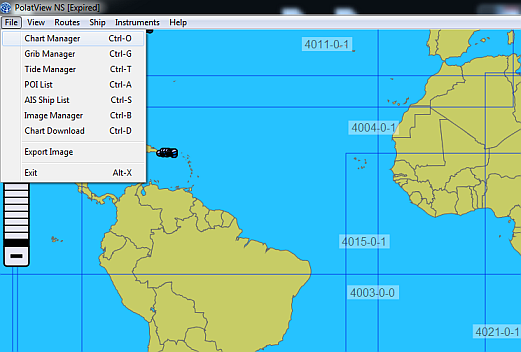
Unlock the charts (Step 1).
In Polar Navy, go to File → Chart Manager → Set Directories.
Charts will be scanned and loaded.
Expedition (Professional)
Expedition is a high-end racing navigation program (approx. £1,000). If you are an Expedition user, you will already know how to configure the software.
And finally…

Unified Charts are designed to work across a range of navigation programs. You can test them with different options and even run more than one program simultaneously.
This article was originally published on 24 April 2016